2. Simple Example
In this lab you will learn how to deploy a simple application using Argo CD.
Our lab setup consists of the following components:
- Git Server (Gitea ): https://gitea.training.cluster.acend.ch
- Argo CD Server: https://argocd.training.cluster.acend.ch
- OpenShift Cluster
Task 2.1: Fork the Git repository
As we are proceeding according to the GitOps principle we need some example resource manifests in a Git repository which we can edit.
Users which have a personal Github account can just fork the Repository argocd-training-examples to their personal account. To fork the repository click on the top right of the Github on Fork.
All other users can use the provided Gitea installation of the personal lab environment. Visit https://gitea.training.cluster.acend.ch with your browser and register a new account with your personal username and a password that you can remember ;)
Note
All the cli commands in this chapter must be executed in the terminal of the provided Web IDE.
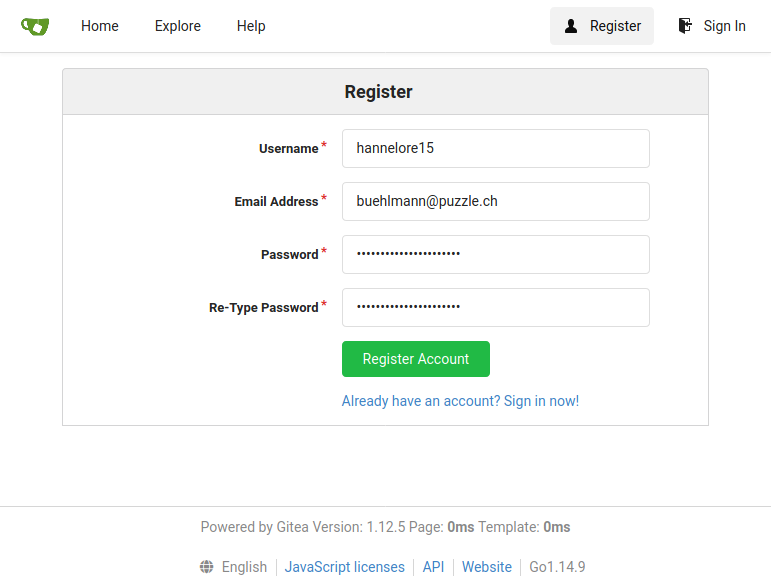
Login with the new user and fork the existing Git repository from Github:
- Select Create on the top right -> New Migration -> Select GitHub
- Migrate / Clone From URL: https://github.com/acend/argocd-training-examples.git
- Click Migrate Repository
The Git Repository is available under your Repositories
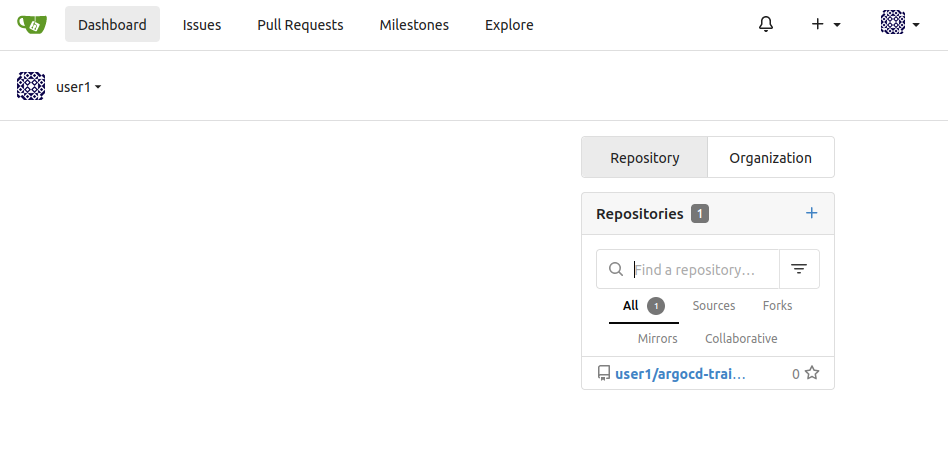
By clicking on the repository link in the repository list you get to the detail page.
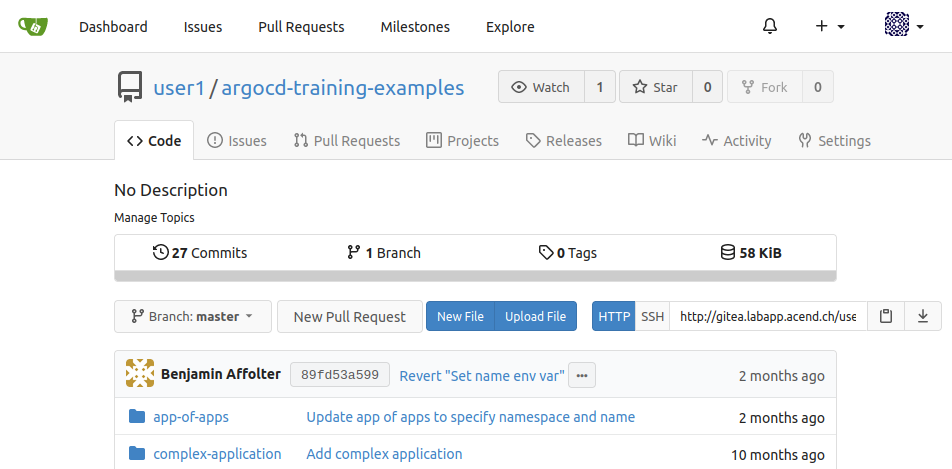
The URL of the Git repository, we’ll be working with, will look like https://gitea.training.cluster.acend.ch/<username>/argocd-training-examples.git.
Within the Web IDE we set the USER environment variable to your personal <username>.
export USER=<user>
Verify that with the following command:
echo $USER
The USER variable will be used as part of the commands to make the lab experience more comfortable for you.
Note
If you’re not using our lab webshell to execute the labs, make sure to set theUSER environment variable accordingly with the following command export USER=<username>Clone the forked repository to your local workspace:
git clone https://$USER@gitea.training.cluster.acend.ch/$USER/argocd-training-examples.git
… or the corresponding URL if you have choosen to use your own Git Server.
Change the working directory to the cloned git repository:
cd argocd-training-examples/example-app
When using the Web IDE: Configure the Git Client and verify the output
git config user.name "$USER"
git config user.email "$USER@gitea.training.cluster.acend.ch"
And we also want git to store our Password for the whole day so that we don’t need to login every single time we push something.
git config credential.helper 'cache --timeout=86400'
Then use the following command to verify whether the git config for username and email were correctly added:
git config --local --list
Task 2.2: Deploying the resources with Argo CD
Now we want to deploy the resource manifests contained in the cloned repository with Argo CD to demonstrate the basic features of Argo CD.
Create a file example-application.yaml with the following content:
apiVersion: argoproj.io/v1alpha1
kind: Application
metadata:
  name: argo-$USER
  namespace: openshift-gitops
spec:
  project: default
  source:
    repoURL: https://gitea.training.cluster.acend.ch/$USER/argocd-training-examples.git
    targetRevision: HEAD
    path: example-app
  destination:
    server: https://kubernetes.default.svc
    namespace: $USER
Apply it to the cluster:
oc apply -f example-application.yaml
Expected output: application 'example-application-<username>' created
Argo CD will now detect the application. Once the application is created, you can view its status:
oc describe application example-application-$USER -n openshift-gitops
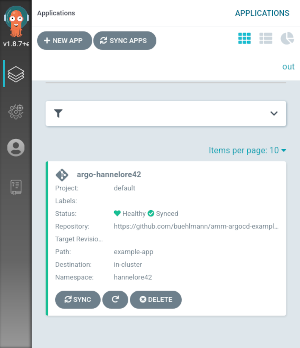
Open the Argo CD UI and click Sync to deploy the resources. This command retrieves the manifests from the git repository and performs a oc apply on them. From now on, all resources are managed by Argo CD. Congrats, the first step in direction GitOps! :)
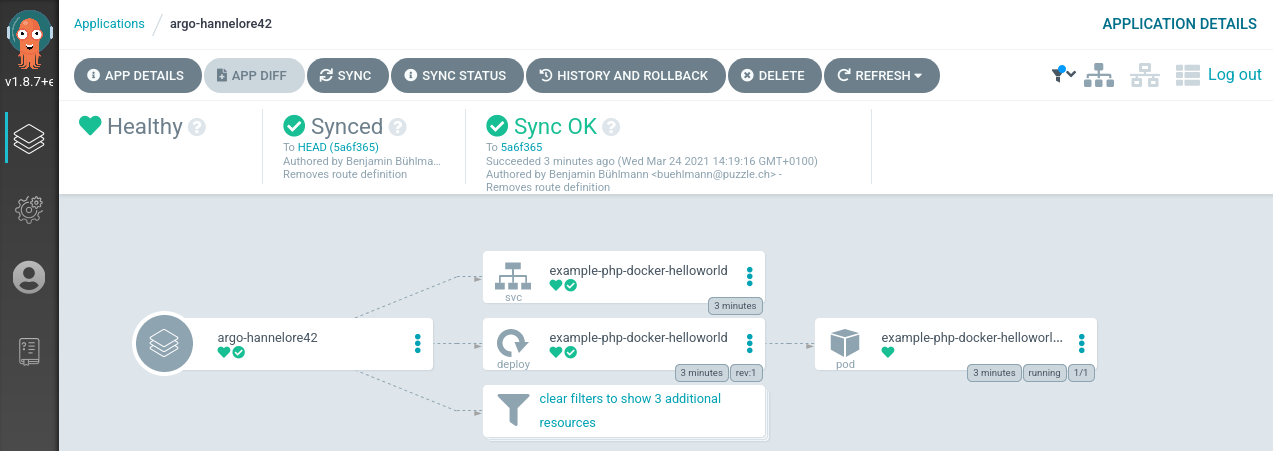
Once synced the application status will show as Healthy.
oc get application example-application-$USER -n openshift-gitops
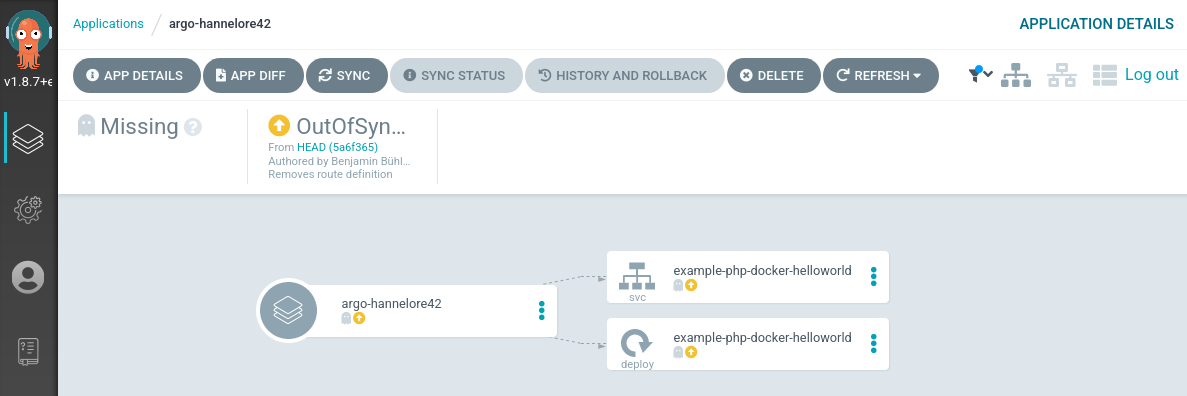
Application overview in unsynced and synced state
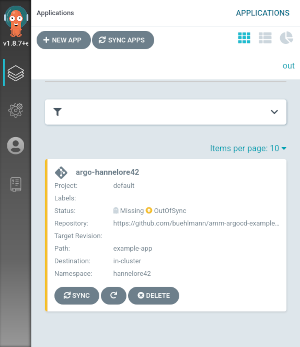
Detailed view of a application in unsynced and synced state
Task 2.3: Automated Sync Policy and Diff
When there is a new commit in your Git repository, the Argo CD application becomes OutOfSync. Let’s assume we want to scale up our Deployment of the example application from 1 to 2 replicas. We will change this in the Deployment manifest.
Increase the number of replicas in your file <workspace>/example-app/deployment.yaml to 2.
apiVersion: apps/v1
kind: Deployment
metadata:
  name: simple-example
spec:
  replicas: 2
  revisionHistoryLimit: 3
  selector:
    matchLabels:
      app: simple-example
  template:
    metadata:
      labels:
        app: simple-example
    spec:
      containers:
      - image: quay.io/acend/example-web-go
        name: simple-example
        ports:
        - containerPort: 5000
Commit the changes and push them to your personal remote Git repository. After the Git push command a password input field will appear at the top of the Web IDE.
git add .
git commit -m "Increased replicas to 2"
git push
After a successful push you should see the following output
Enumerating objects: 7, done.
Counting objects: 100% (7/7), done.
Delta compression using up to 8 threads
Compressing objects: 100% (4/4), done.
Writing objects: 100% (4/4), 367 bytes | 367.00 KiB/s, done.
Total 4 (delta 3), reused 0 (delta 0), pack-reused 0
remote: Resolving deltas: 100% (3/3), completed with 3 local objects.
To https://gitea.training.cluster.acend.ch/<username>/argocd-training-examples.git
   5a6f365..e2d4bbf  master -> master
Out of the box Git will be polled by Argo CD in a predefined interval (defaults to 3 minutes). To use a synchronous workflow you can use webhooks in Git. These will trigger a synchronization in Argo CD on every push to the repository.
Open the Argo CD UI
and click Refresh on the argo-$USER application to trigger an immediate update.
Now open the web console of Argo CD and go to your application. The deployment simple-example is marked as ‘OutOfSync’:
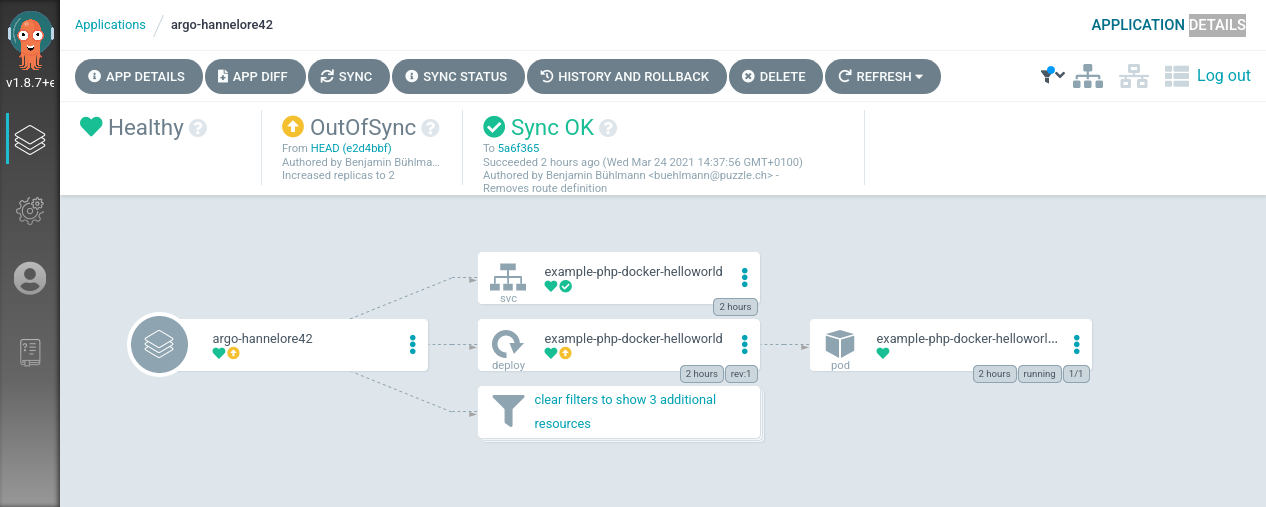
When an application is OutOfSync then your deployed ’live state’ is no longer the same as the ’target state’ which is represented by the resource manifests in the Git repository. You can inspect the differences between live and target state with a click on Deployment > Diff:
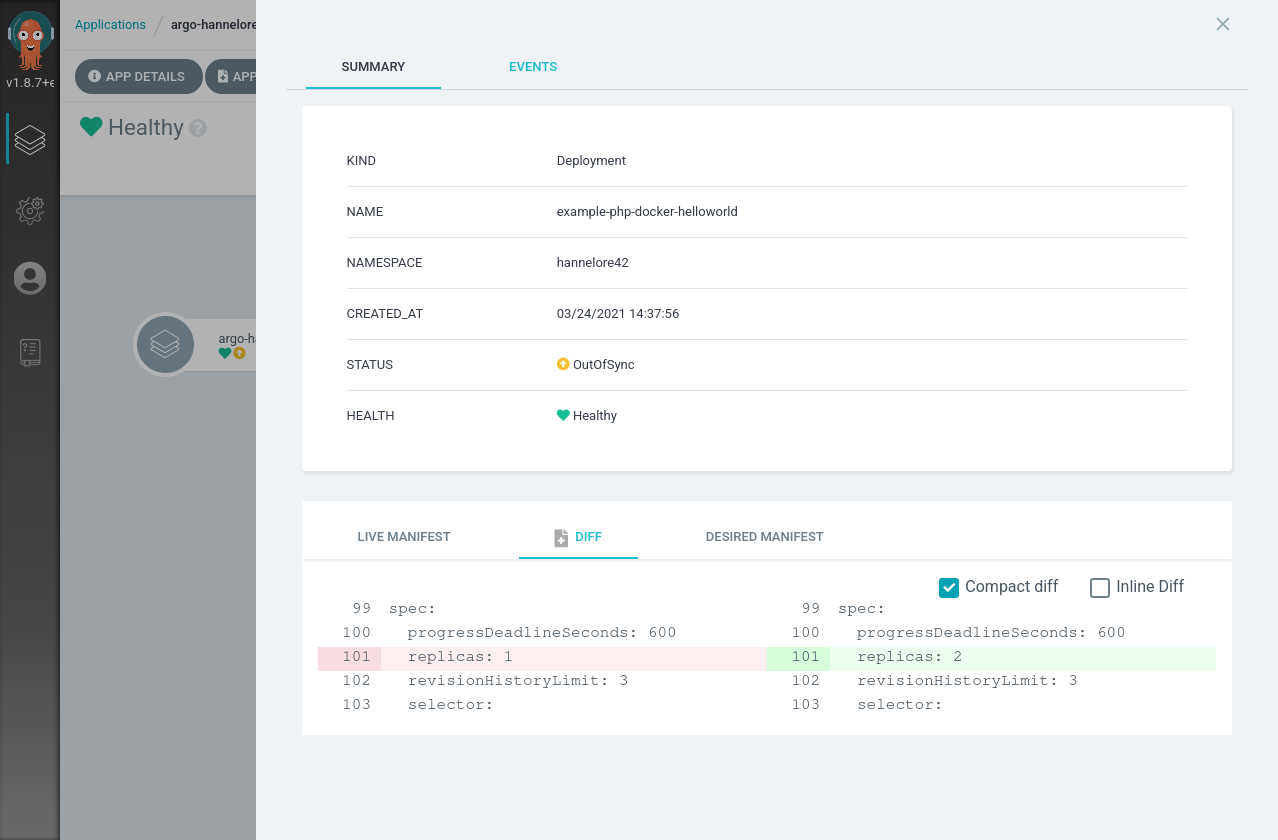
Now click Sync on the top left and let the magic happen ;) The application will be scaled up to 2 replicas and the resources are in Sync again.
Argo CD can automatically sync an application when it detects differences between the desired manifests in Git, and the live state in the cluster. A benefit of automatic sync is that CI/CD pipelines no longer need direct access to the Argo CD API server to perform the deployment. Instead, the pipeline makes a commit and push to the Git repository with the changes to the manifests in the tracking Git repo.
To configure automatic sync, edit the example-application.yaml (or use the UI):
apiVersion: argoproj.io/v1alpha1
kind: Application
metadata:
  name: argo-$USER
  namespace: openshift-gitops
spec:
  project: default
  source:
    repoURL: https://gitea.training.cluster.acend.ch/$USER/argocd-training-examples.git
    targetRevision: HEAD
    path: example-app
  destination:
    server: https://kubernetes.default.svc
    namespace: $USER
  syncPolicy:
    automated: {}
and re-apply the manifest:
oc apply -f example-application.yaml
From now on Argo CD will automatically apply all resources to Kubernetes every time you commit to the Git repository.
Decrease the replicas count to 1 and push the updated manifest to remote. Wait for a few moments and see check that ArgoCD will scale the deployment of the example app down to 1 replica. The default polling interval is 3 minutes. If you don’t want to wait you can force a refresh by clicking Refresh in the UI
.
Task 2.4: Automatic Self-Healing
By default, changes made to the live cluster will not trigger automatic sync. To enable automatic sync when the live cluster’s state deviates from the state defined in Git,
edit example-application.yaml to set selfHeal: true and re-apply:
  syncPolicy:
    automated:
      selfHeal: true
oc apply -f example-application.yaml
Watch the deployment simple-example in a separate terminal:
oc get deployment simple-example --watch --namespace=$USER
Let’s scale our simple-example Deployment and observe whats happening:
oc scale deployment simple-example --replicas=3 --namespace=$USER
Argo CD will immediately scale back the simple-example Deployment to 1 replicas. You will see the desired replicas count in the watched Deployment.
NAME             READY   UP-TO-DATE   AVAILABLE   AGE
simple-example   1/1     2            2           114m
simple-example   1/3     2            2           114m
simple-example   1/3     2            2           114m
simple-example   1/3     2            2           114m
simple-example   1/3     3            2           114m
simple-example   1/1     3            2           114m
simple-example   1/1     3            2           114m
simple-example   1/1     3            2           114m
simple-example   1/1     2            2           114m
This is a great way to enforce a strict GitOps principle. Changes which are manually made on deployed resource manifests are reverted immediately back to the desired state by the ArgoCD controller.
Task 2.5: Expose Application
This is an optional task.
To expose an application we need to specify a so called route resource. Create a route.yaml file next to the deployment.yaml in the example-app directory.
---
apiVersion: route.openshift.io/v1
kind: Route
metadata:
  name: simple-example
spec:
  port:
    targetPort: 5000
  to:
    kind: Service
    name: simple-example
    weight: 100
  wildcardPolicy: None
Commit and Push the changes again, like you did before:
git add .
git commit -m "Expose application"
git push
After ArgoCD syncs the changes, you can access the example applications url: https://simple-example-<username>.training.cluster.acend.ch
Verify using the following command:
curl https://simple-example-$USER.training.cluster.acend.ch
The result should look similar to this:
<h1 style=color:#e81198>Hello golang</h1><h2>ID: e81198</h2>
Task 2.6: Pruning
You probably asked yourself: how can I delete deployed resources on the container platform? Argo CD can be configured to delete resources that no longer exist in the Git repository.
First delete the files service.yaml and route.yaml from Git repository and push the changes:
git add .
git add --all && git commit -m 'Removes service and ingress' && git push
Open the Argo CD UI and click Refresh on the application. You will see that even with auto-sync enabled the resources are still OutOfSync.
To enable pruning, edit example-application.yaml and re-apply:
  syncPolicy:
    automated:
      selfHeal: true
      prune: true
oc apply -f example-application.yaml
Click Refresh again in the UI. The Service and Ingress/Route will now be pruned (deleted) by Argo CD.
The Service was successfully deleted by Argo CD because the manifest was removed from git. See the HEALTH and MESSAGE of the previous console output.
Task 2.7: State of ArgoCD
Argo CD is largely built stateless. The configuration is persisted as native Kubernetes objects. And those are stored in Kubernetes etcd. There is no additional storage layer needed to run ArgoCD. The Redis storage under the hood acts just as a throw-away cache and can be evicted anytime without any data loss.
The configuration changes made on ArgoCD objects through the UI or by CLI are reflected in updates of the ArgoCD Kubernetes objects Application and AppProject in the openshift-gitops namespace.
Let’s list all Kubernetes objects of type Application (short form: app)
oc get applications --namespace=openshift-gitops
NAME               SYNC STATUS   HEALTH STATUS
argo-<username>    Synced        Healthy
You will see the application which we created. To see the complete configuration of the Application as yaml use:
oc get applications argo-$USER -oyaml --namespace=openshift-gitops
You even can edit the Application resource by using:
oc edit applications argo-$USER --namespace=openshift-gitops
This allows us to manage the ArgoCD application definitions in a declarative way as well. It is a common pattern to have one ArgoCD application which references n child Applications which allows us a fast bootstrapping of a whole environment or a new cluster. This pattern is well known as the App of apps pattern.
Task 2.8: Accessing a private Git repository
You can define credential templates when using the same credential for multiple Git repositories. The configured credentials are used for each Git repository beginning with the configured URL.
A credential template is a Secret with the label argocd.argoproj.io/secret-type: repo-creds and a URL prefix instead of a full repository URL. Argo CD will use its credentials for every repository whose URL starts with that prefix.
apiVersion: v1
kind: Secret
metadata:
  name: my-group-creds
  namespace: openshift-gitops
  labels:
    argocd.argoproj.io/secret-type: repo-creds
stringData:
  type: git
  url: https://gitea.training.cluster.acend.ch/my-group
  username: my-user
  password: my-token
oc apply -f repo-creds-secret.yaml
For example, a template for https://gitea.training.cluster.acend.ch/my-group would cover all repositories within that group without needing a separate secret per repository.
Finally make your personal Git repository public again for the following labs. Uncheck the option Visibility: Make Repository Private under Settings -> Repository in the Gitea UI.
Note
TLS certificates and SSH private keys are supported alternative authentication methods by Argo CD. Proxy support can be configured as well in the repository settings.Have a look in the documentation for detailed information about accessing private repositories.
Since the forked repository is public, no additional credential configuration is needed. Private repository access is managed via the Argo CD UI under Settings → Repositories if required.
Task 2.9: Delete the Application
You can cascading delete the ArgoCD Application with the following command:
oc delete application argo-$USER -n openshift-gitops
This will delete the Application resource. Since automated pruning is enabled, Argo CD will also delete the managed Deployment and Service from the namespace.